
Single-device control window
Click any card's screen on the device wall to open that device's standalone control window — a high-definition view plus full control, like enlarging the phone onto your computer.
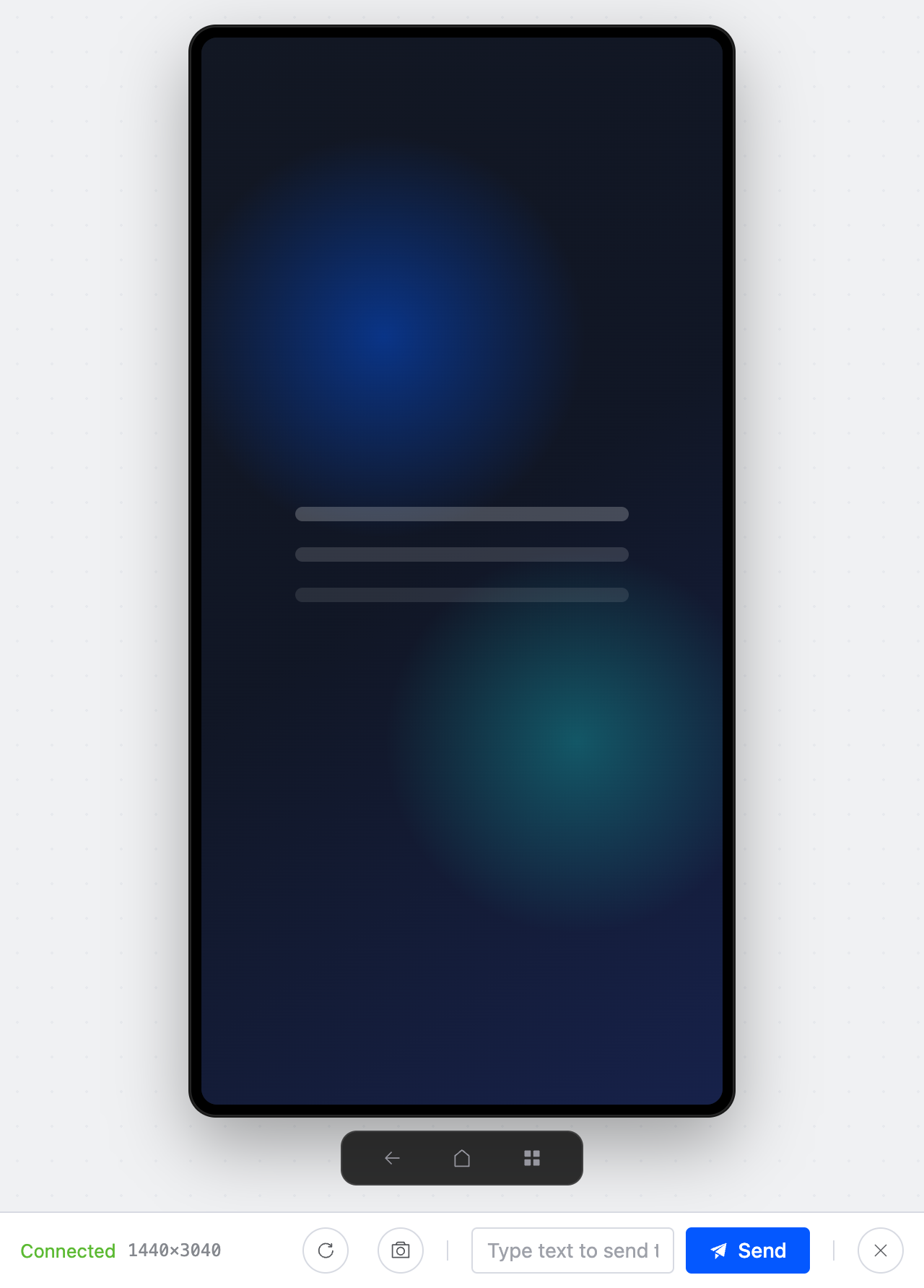
Operate the screen directly
Drive the phone straight from your mouse on the screen:
| Computer action | Effect on the phone |
|---|---|
| Click | Tap |
| Press and drag | Swipe (scroll lists, turn pages, drag elements) |
| Mouse wheel | Scroll lists |
| Right click | Back |
| Middle click | Home |
Bottom Control Bar
| Button | Function |
|---|---|
| Back | Same as the Android "Back" key |
| Home | Return to the home screen |
| Recents | Open recent tasks |
| Rotate | Rotate the screen orientation |
| Screenshot | Capture the current screen and save it to the computer |
| Text input | Send text to the current phone input field |
| Close | Close the control window |
Keyboard and Text Input
The control window supports computer keyboard input. Tap the target input field on the phone first so it has the cursor, then type directly on the computer keyboard. You can also type a phrase into the bottom text box and click Send.
Where do screenshots go?
Screenshots are saved to your system's default download folder. For batch screenshots, see Group control & batch operations.
Close the window
Press Esc or click the Close button in the bottom control bar. Closing the window doesn't affect the connection on the device wall.
TIP
The control window and the device wall don't interfere with each other: while the window is open, that device's screen on the wall keeps refreshing, and batch operations still work.