Physical phones vs. cloud phones
Before you use VMOS Cast, figure out whether the device you're connecting is a physical phone or a cloud phone — they connect differently, and you troubleshoot them differently too. When you report a problem, always tell us which one you're using.
What is a physical phone
A physical phone is a real Android handset: the kind you can hold in your hand, with a screen and a battery (Xiaomi, OPPO, vivo, Huawei, Honor, Samsung, and so on).
Traits of physical phones:
- The first connection must use a USB cable. By default the phone doesn't allow network debugging. You first "prime" it once over a USB cable (enabling wireless connection), and only after that can you switch to a WiFi connection.
- You need to manually enable "Developer options" and "USB debugging" on the phone.
- On the first connection, an authorization dialog pops up on the phone's screen — you need to tap "Allow."
For detailed steps, see USB cable connection.
What is a cloud phone
A cloud phone is a virtual Android phone running on a server (for example, a VMOS Edge cloud phone or an instance from various cloud-phone platforms). It has no physical body; you reach it through an IP address.
Traits of cloud phones:
- Network adb (port 5555) is usually on by default. Just enter the cloud phone's
IP:5555in VMOS Cast to connect — no USB cable needed (and you couldn't plug one in anyway). - No setup is needed "on the phone" itself.
- If it won't connect, it's usually a wrong IP, an unreachable network, or a cloud platform that hasn't opened the adb port — check the cloud platform's documentation.
For detailed steps, see Local network (WiFi) connection.
At a glance
| Physical phone | Cloud phone | |
|---|---|---|
| Form | Real handset | Virtual phone on a server |
| First connection | Must "prime" over USB | Enter IP directly |
| Phone-side setup | Enable USB debugging | Usually none |
| Authorization dialog | Tap "Allow" on the phone | Usually none |
| Common connection failures | USB debugging off / not primed / authorization not tapped | Wrong IP / unreachable network / port not open |
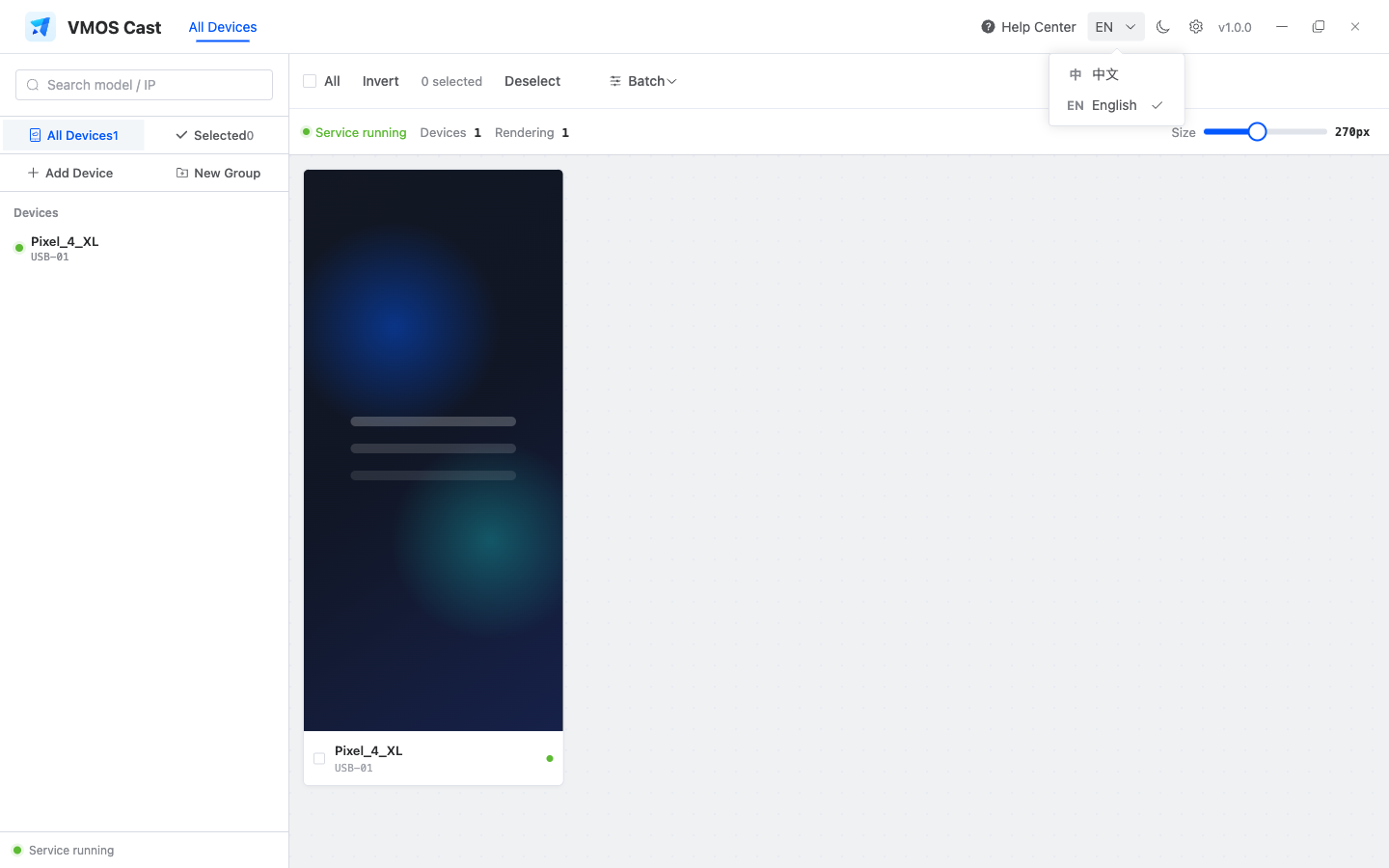
Once connected, both types appear on the same VMOS Cast device wall. Selection, grouping, and batch operations work the same way.
Read before reporting a problem
When you report a connection problem, say this first: "I'm using a physical phone" or "I'm using a cloud phone." For a physical phone, also confirm: (1) Is USB debugging enabled? (2) Have you already connected successfully once over USB? This makes pinpointing the problem twice as fast. See How to report a problem.