
USB cable connection
For physical phones. USB is a physical phone's first step: you can use it to cast and control directly over USB, and it's also the prerequisite for enabling wireless WiFi connection later.
Before you start
- A data cable that supports data transfer. Many cheap cables only charge and can't carry data — if a connection gets no response, try a different cable first.
- The phone runs Android 5.1 or later (nearly every phone in use qualifies).
Step 1: Enable Developer options
Android's "Developer options" is hidden by default, so unlock it first:
- Open the phone's "Settings" → "About phone";
- Find "Build number" (on some phones it's under "Software information");
- Tap it 7 times until you see "You are now a developer."
Where to find "Build number" by brand
| Brand | Location |
|---|---|
| Xiaomi / Redmi | Settings → My device → All specs → MIUI/OS version (tap 7 times) |
| OPPO / realme / OnePlus | Settings → About device → Version → Build number |
| vivo / iQOO | Settings → System management → About phone → Software version |
| Huawei / Honor | Settings → About phone → Build number |
| Samsung | Settings → About phone → Software information → Build number |
Step 2: Enable USB debugging
- Go back to "Settings" and find "Developer options" (usually under "System," "Additional settings," or "More settings" — you can also search "developer" in the settings search box at the top);
- Turn on the "USB debugging" switch;
- Some phones (such as Xiaomi) also have a "USB debugging (Security settings)" switch that controls simulated taps — it's best to turn this on too, otherwise you may be able to see the screen but not operate it.
Step 3: Plug in and authorize
- Connect the phone to the computer with a data cable;
- The phone may prompt you to choose a "USB use" — pick "Transfer files" (don't pick "Charge only");
- The phone's screen shows an "Allow USB debugging?" authorization dialog: check "Always allow from this computer," then tap "Allow."
Didn't see the authorization dialog?
Unplug and plug back in; or, in Developer options, tap "Revoke USB debugging authorizations" and reconnect. The dialog only appears when the screen is on, so unlock the phone first.
Done
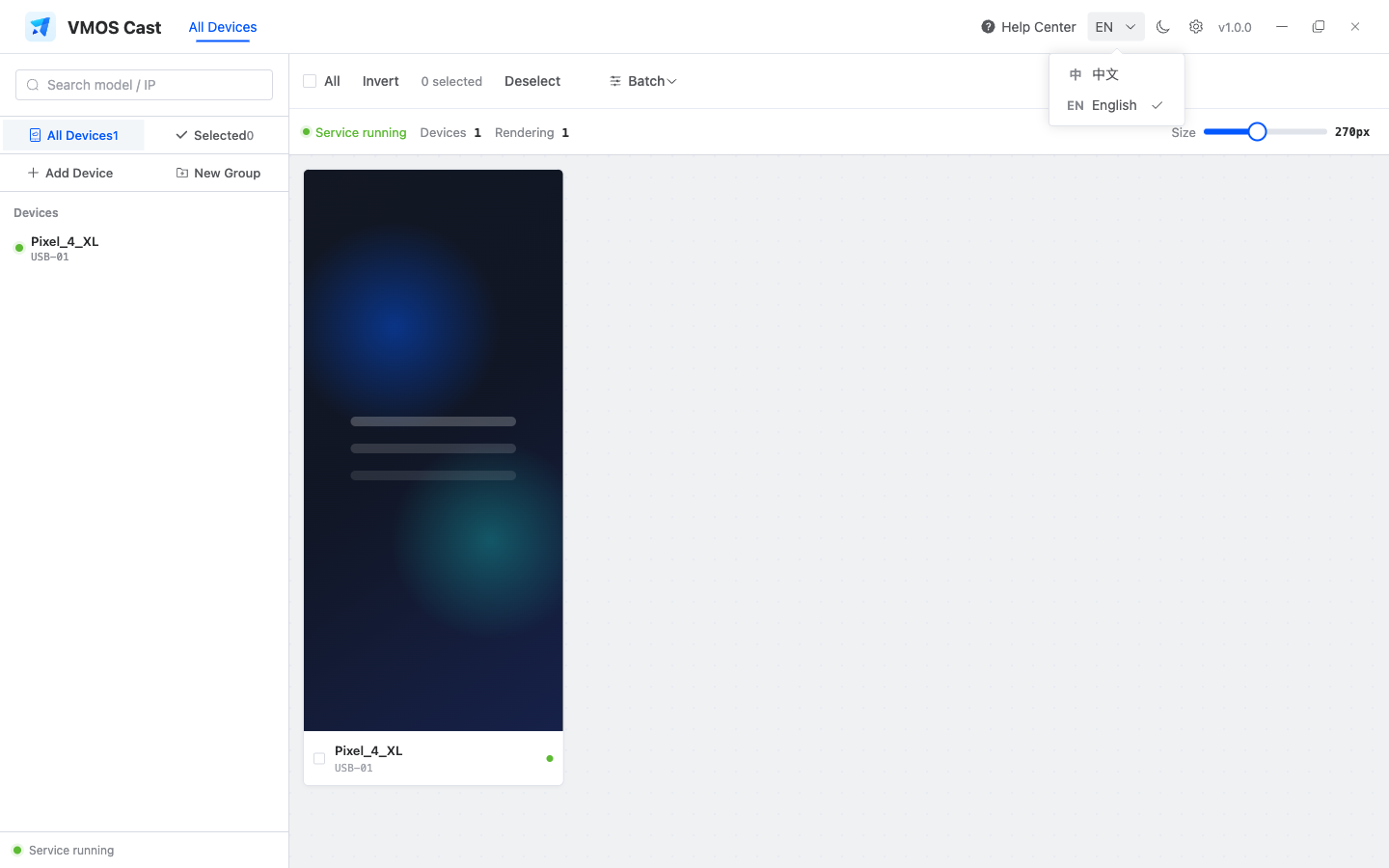
Once authorization succeeds, the phone's screen appears on the VMOS Cast device wall within a few seconds. Click the screen to open the control window and drive the phone with your mouse.
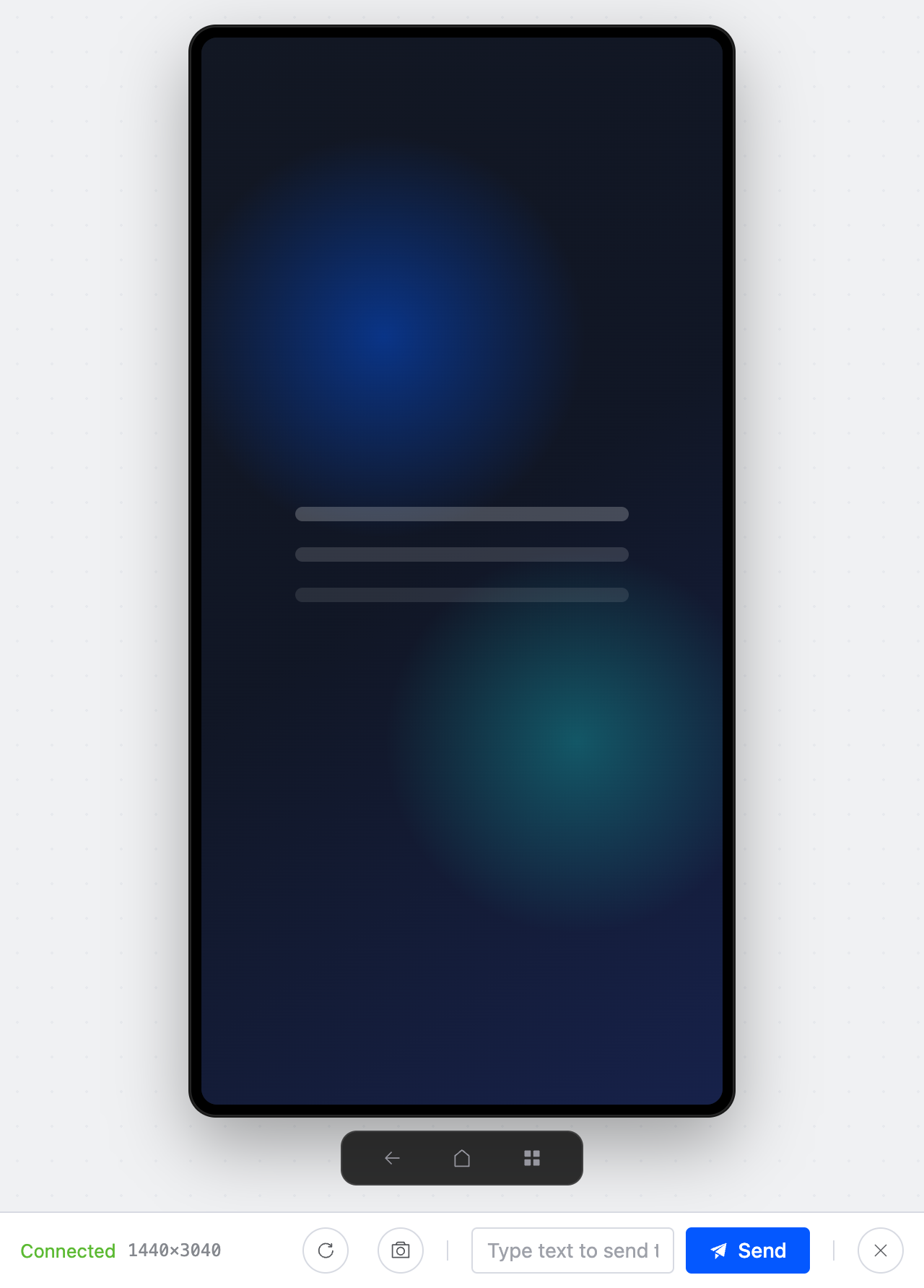
To confirm you are in the control window, compare the bottom control bar: Back, Home, Recents, Rotate, Screenshot, text sending, and Close are all shown in the same window.
Cannot connect? Check in order
- Swap the cable — a charge-only cable is the most common cause;
- Confirm "USB debugging" really is on;
- Confirm you tapped "Allow" on the authorization dialog (reconnect if you haven't);
- Windows users: some phone brands need their official USB driver installed (search the phone brand's official site for "USB driver");
- Run
adb devicesin a terminal — if you can see the device but it showsunauthorized, the authorization wasn't tapped; if you see nothing at all, it's a cable/driver problem.
Brand-specific notes
| Brand | Extra note |
|---|---|
| Xiaomi / Redmi | Enable "USB debugging (Security settings)" and "Install via USB"; otherwise the screen may show but control can fail |
| OPPO / realme / OnePlus | Keep the screen unlocked after enabling USB debugging; some systems ask for authorization more than once |
| vivo / iQOO | If you cannot find Developer options, search Settings for "developer" or "USB debugging" |
| Huawei / Honor | Choose "Transfer files" when the USB mode prompt appears, and make sure the authorization dialog is not hidden by the lock screen |
| Samsung | On Windows, install Samsung USB Driver first, then reconnect |
Still stuck? Note the result of each step above and see How to report a problem to reach us.
Next: Enable wireless WiFi connection (optional)
Once USB works, you can switch the phone to a WiFi connection to shed the cable and manage more devices from one computer. See Local network connection: First-time WiFi setup for physical phones.