Frequently Asked Questions
This page follows the order users usually need: connection first, then device wall, control, batch operations, settings, updates, and support.
Connection
Do I need to install an app on the phone?
No. VMOS Cast creates a temporary casting and control channel when connecting to Android devices. It does not leave a permanent app icon on the phone, and root is not required.
Which devices are supported?
The current version supports Android physical phones and Android cloud phones. iPhone and iPad are not supported yet.
Can VMOS Cast scan devices on the same LAN?
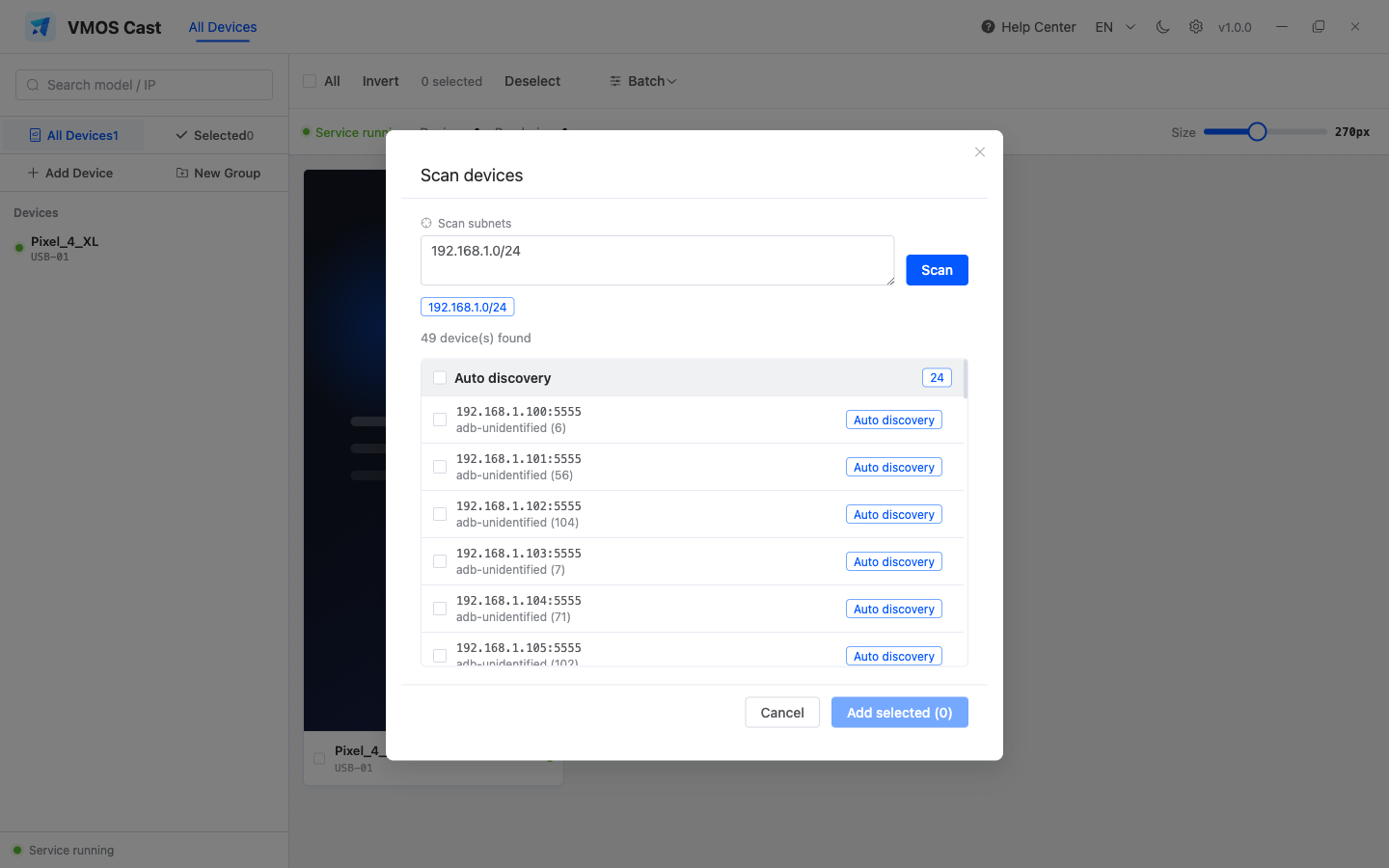
Yes. Click Add Device → Scan devices, enter a subnet, start scanning, select the devices you want, then click Add selected.
What format should I enter?
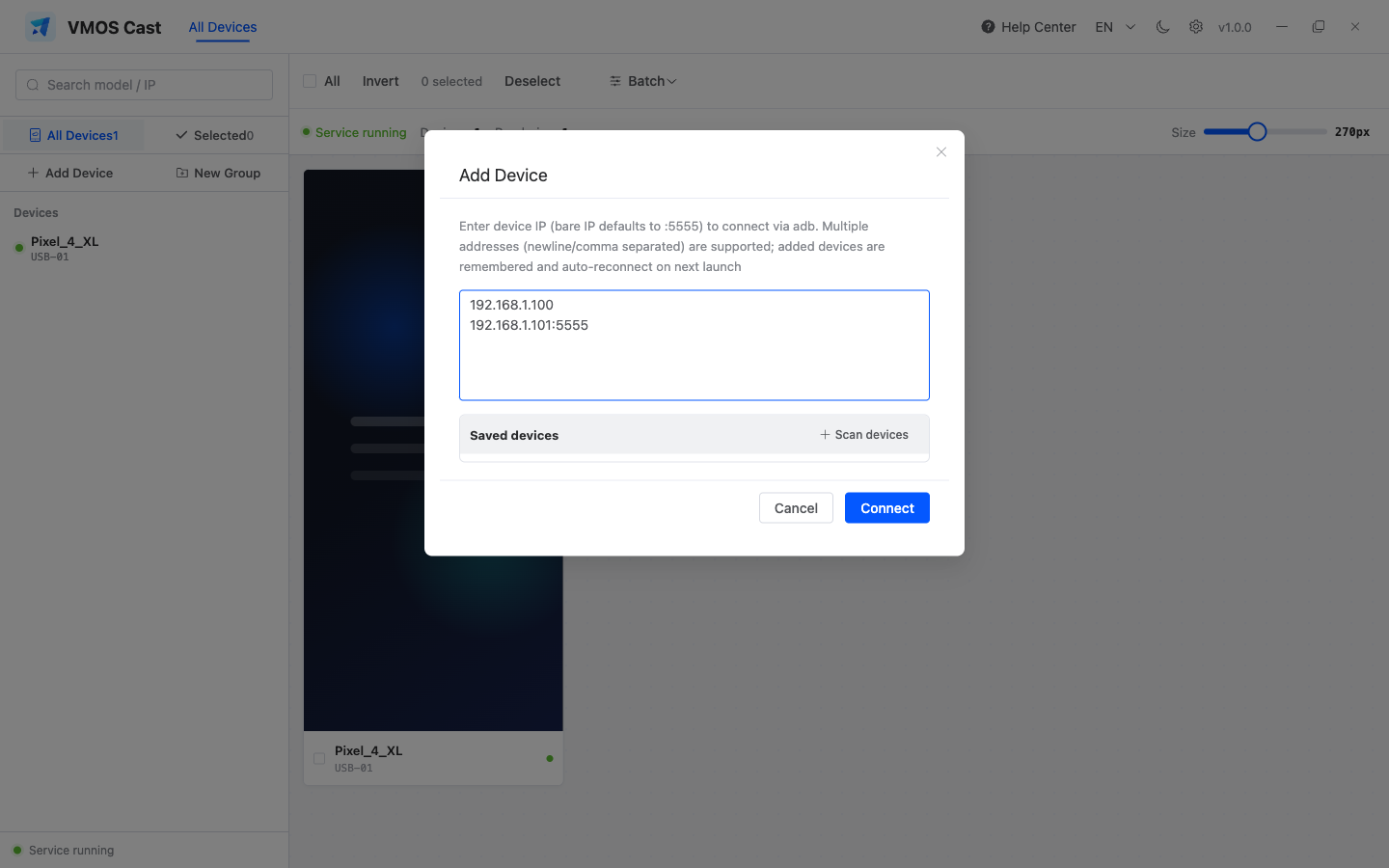
Use IP:5555, for example 192.168.1.100:5555. If you enter only 192.168.1.100, VMOS Cast uses port 5555. Multiple devices can be separated by new lines, spaces, or commas.
Why does a physical phone need USB before IP connection works?
Physical phones disable network debugging by default. Connect by USB once and enable network connection before connecting by IP. After the phone reboots, network debugging usually turns off and must be enabled again over USB. See LAN connection: first-time WiFi setup.
Cloud phone cannot connect?
Check three things first: the IP is correct, the computer can reach that network, and the cloud-phone platform has port 5555 open. On corporate networks, also check VLAN boundaries, guest network isolation, and firewall rules.
USB is plugged in, but nothing happens?
Check in order: use a data cable, confirm USB debugging is enabled, tap Allow USB debugging on the phone, install the phone brand's USB driver on Windows, then run adb devices in a terminal. See USB cable connection.
How do I install adb?
Android Platform Tools is recommended for USB physical phones and batch operations.
macOS:
brew install --cask android-platform-toolsWindows:
- Download Google's official Platform Tools;
- Extract it to a fixed folder, such as
C:\platform-tools; - Add that folder to the system Path environment variable;
- Reopen cmd or PowerShell and run
adb version.
Linux:
sudo apt install adb          # Debian / Ubuntu
sudo pacman -S android-tools  # Arch
Restart VMOS Cast after installing.
Will devices reconnect automatically?
Yes. Addresses added manually or through scanning are saved and retried on the next launch. If you remove selected devices or delete an address from Saved devices, it will not auto-reconnect again.
Device Wall and Groups
How do I select a device?
Click the bottom or edge area of a device card. A selected card gets a blue border. Clicking the screen area opens the single-device control window instead.
Which devices does Select all choose?
Only currently visible devices. Search or switch to a group first, then click Select all to apply batch operations only to that set.
Does switching groups disconnect other devices?
No. Groups only filter the view. Other devices keep their connections and reappear when you return to All Devices.
How do I remove devices I no longer need?
Select devices, expand Batch, then click Remove selected. If the device was saved as a manually added address, that saved address is removed too.
Single-Device Control
What can I do in the control window?
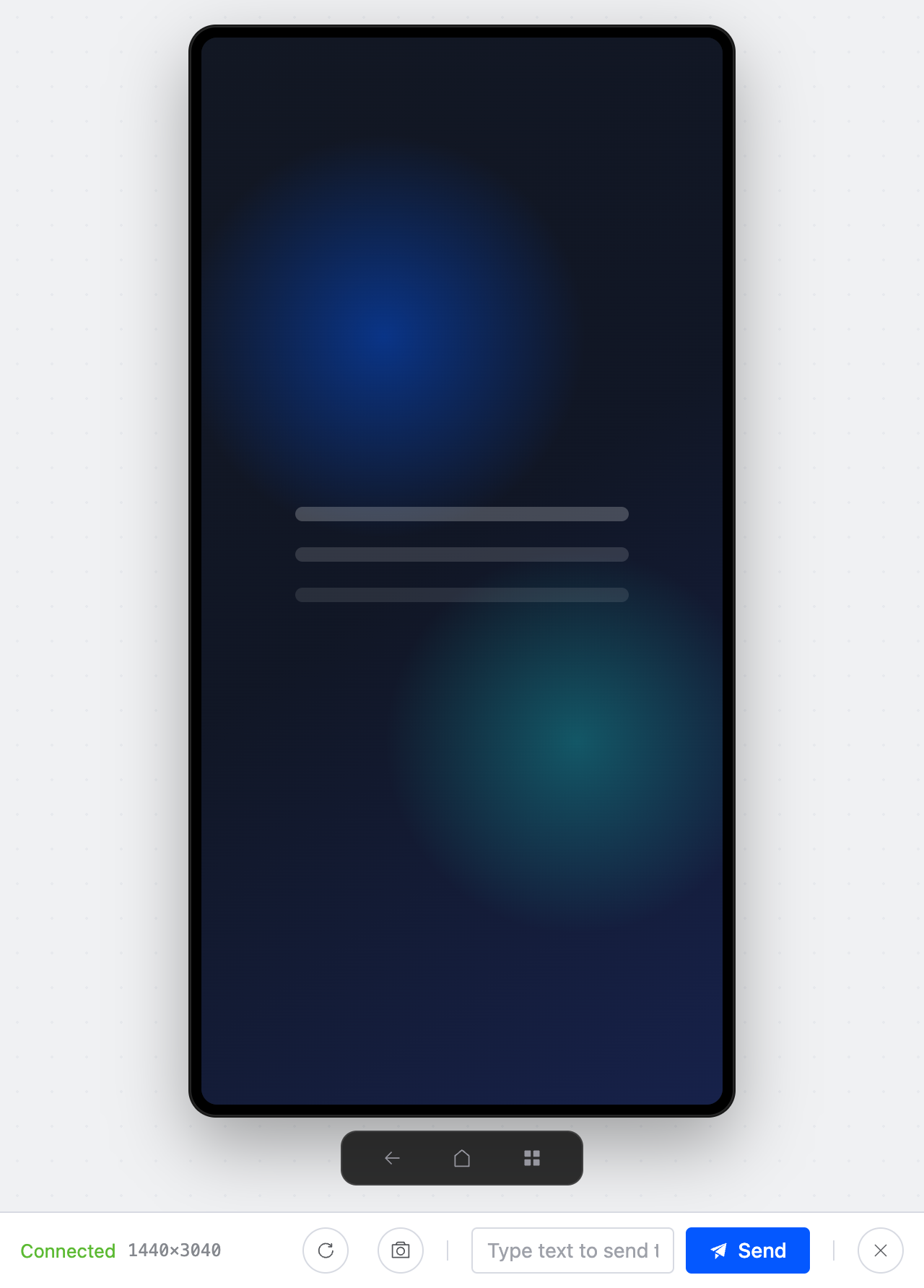
You can click, drag, scroll with the mouse wheel, right-click Back, middle-click Home, type with the keyboard, rotate, screenshot, and send text.
Can I type directly with the computer keyboard?
Yes. Tap the target input field on the phone first so it has the cursor, then type on the computer keyboard. You can also type a phrase into the bottom text box and click Send.
Why does a password or payment page turn black?
Some apps enable Android secure-window protection on password, payment, or protected pages. Android blocks screen capture there. This is not a VMOS Cast failure; confirm on the phone itself or switch to a normal page.
What can I do if the screen is laggy?
Show fewer devices at once, hide unused devices with groups, lower thumbnail frame rate, use smaller thumbnails, and use wired network on the computer when possible. With many devices, lower frame rate is usually more stable.
Batch Operations
Where are batch operations?
Select devices first, then click Batch in the top toolbar.
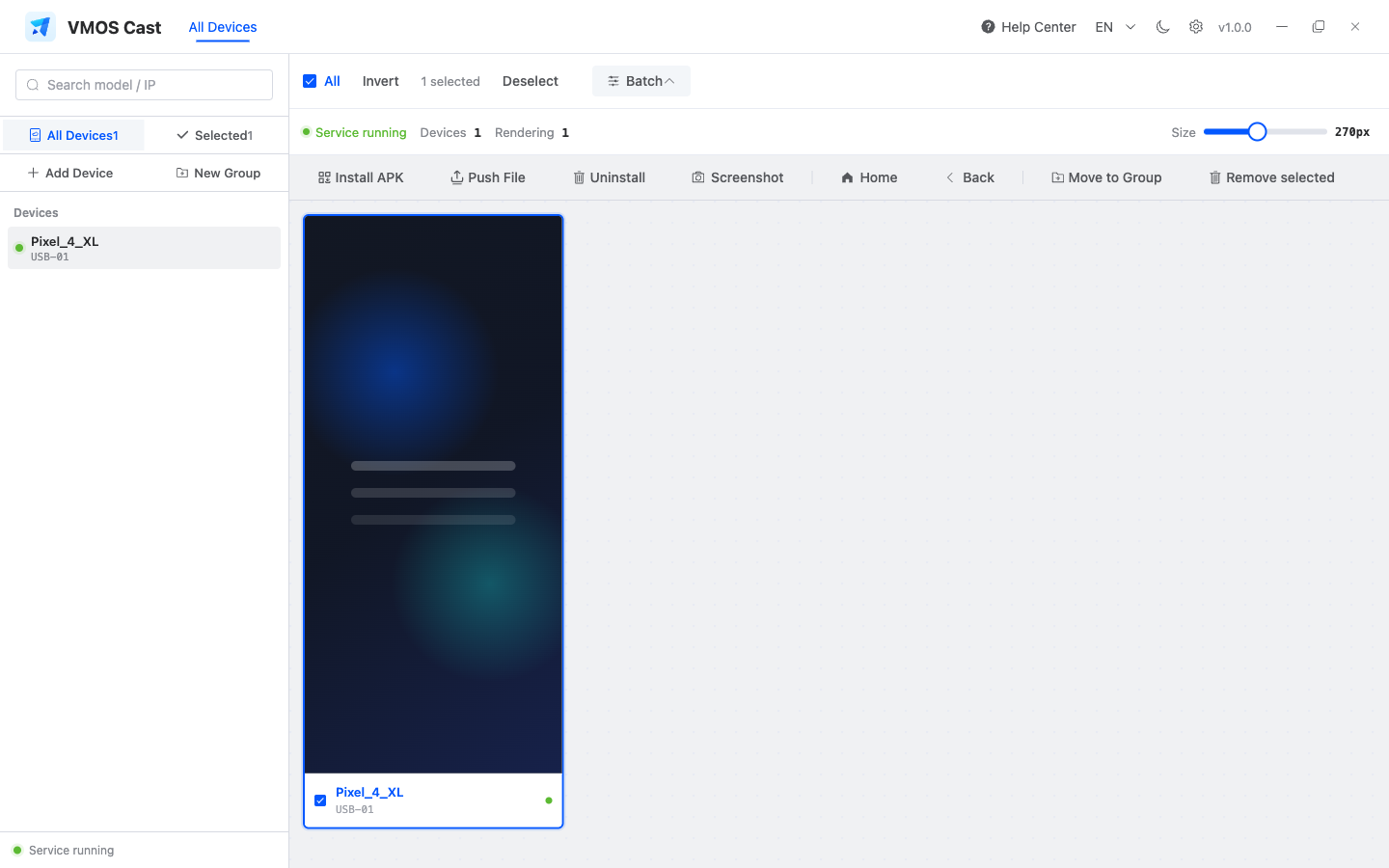
Why does batch APK install fail on some phones?
Common causes include phone-side install confirmation, mismatched old app signature, low storage, expired USB debugging authorization, or unstable network. Test on one or two devices before running it on a whole group.
Is batch uninstall safe?
Batch uninstall cannot be undone. Confirm the package name, test on a small set, then run it on the group.
Where are batch screenshots saved?
They are saved to the computer's default download folder. Capturing many devices repeatedly uses resources and disk space, so wait for one round to finish before starting the next.
Settings, Updates, and Logs
Can I change the theme?
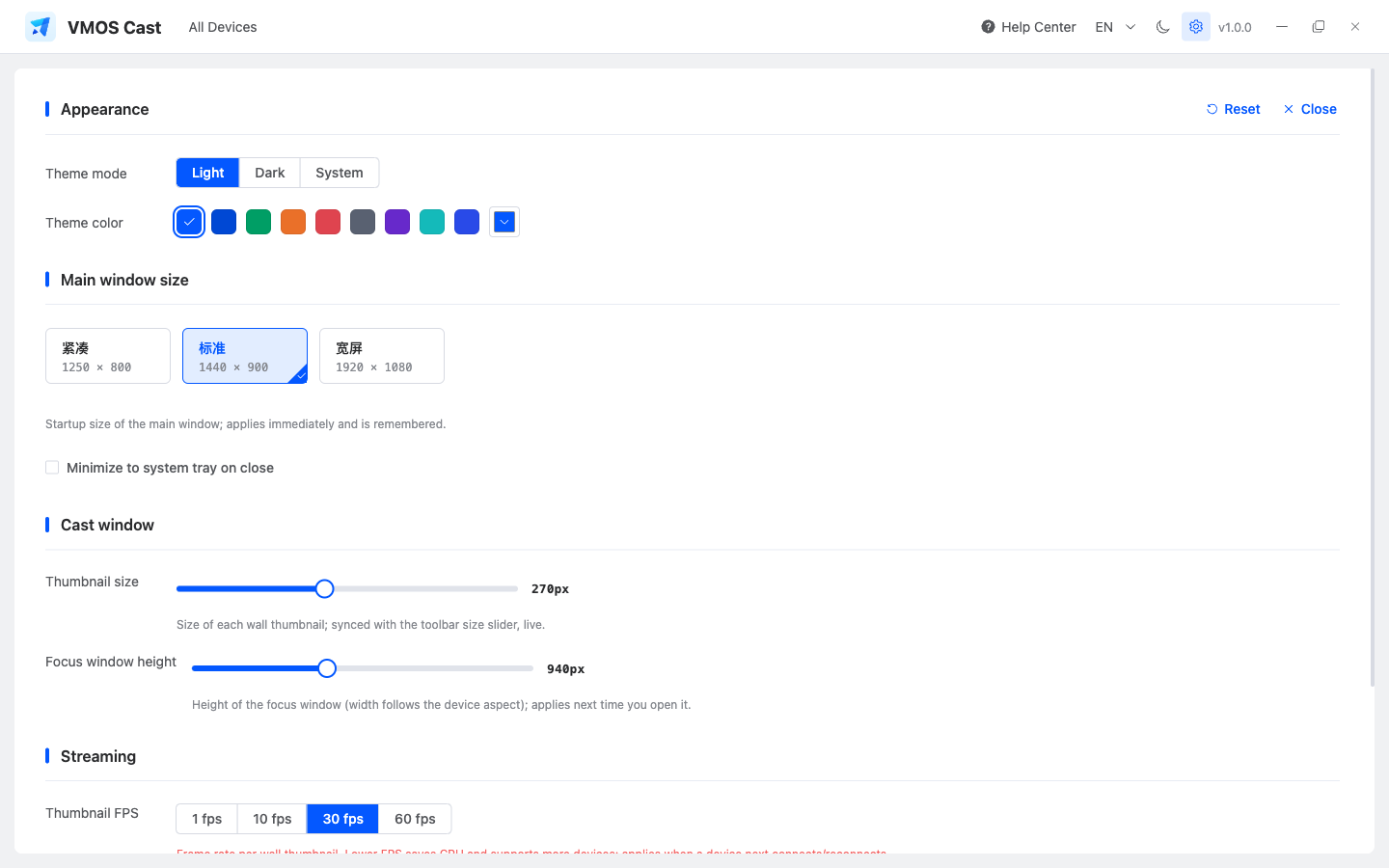
Yes. The moon/sun button in the top bar switches light and dark mode. Settings also supports system theme, theme color, main window size, thumbnail size, control window height, and frame rate.
What is the current latest version?
The current public download is v1.0.6. See Release History for changes and installer links.
How do updates work?
VMOS Cast checks for updates silently on startup and only prompts when a new version is found. You can also use Settings → Check for updates, then download and restart to install.
How do I export logs?
Go to Settings → Export logs and save the zip file. Send it with your support report to help us diagnose the issue faster.
Can I use it offline?
Core casting and control only require the computer and devices to be on the same LAN. Downloading installers, reading online docs, and accessing a cloud-phone platform may still need internet.
Still Stuck?
See How to report a problem, and include the computer OS, connection method, screenshots, and exported logs.