
Group control & batch operations
Once you select multiple devices, the toolbar's batch operations act on all selected devices at once — one action, everyone affected.
How to enter batch mode
- Click the area outside a card's screen to select the device (blue highlighted border); you can select multiple in a row;
- Or use the toolbar's "Select all" to select every visible device in one click (works great with group filtering);
- The top status row shows "N selected."
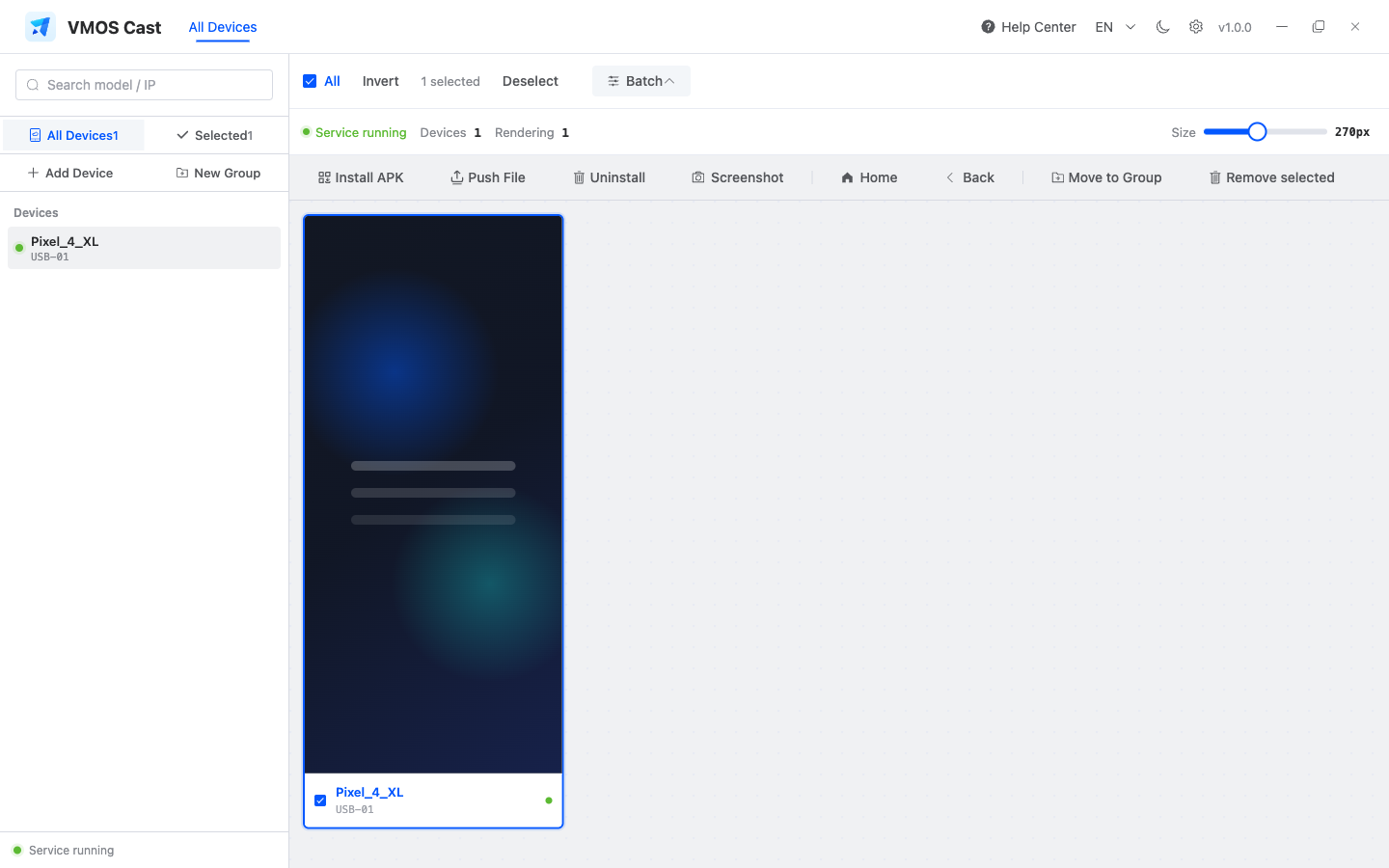
Batch operations at a glance
| Operation | Description |
|---|---|
| Batch install | Choose an APK file on the computer and install it to all selected devices. An older installed version is force-overwritten with the version you chose, keeping every device on the same version |
| Batch push files | Send a computer file to all selected devices (saved to the phone's Download folder by default) |
| Batch uninstall | Enter an app package name to uninstall it from all selected devices |
| Batch screenshot | All selected devices take a screenshot at the same time, saved to your computer |
| Home / Back | Send system keys to all selected online devices |
| Move to Group | Move selected devices to an existing or new group |
| Remove selected | Remove selected devices from the wall and delete saved addresses |
Each device's result is reported one by one; a failure is flagged individually and doesn't affect the other devices.
Common batch buttons are grouped in the top toolbar:
Tips
- Group first, then group-control: build the devices for the same task into a group, then click the group → Select all → batch operation, and it all flows smoothly;
- Be patient with large batch installs: installing an APK on dozens of phones at once depends on phone performance and network, so it queues up — you can watch the progress on screen;
- Devices with different resolutions can run batch operations together; system keys and batch commands are sent device by device.
Pre-run checks
| Batch action | Confirm first |
|---|---|
| Batch install | APK source is trusted, version is consistent, and phones allow USB install |
| Push files | File names do not contain special characters unsupported by the target app |
| Batch screenshot | Disk space is enough; avoid filling the download folder with repeated screenshots |
| Batch uninstall | Package name is exact; test on a small set first |
| Remove selected | Confirm these devices should not auto-reconnect next time |
Notes
- Batch uninstall can't be undone — double-check the package name before you run it;
- Some phones (such as Xiaomi) may show a confirmation dialog on the phone when installing an app; you'll need to enable "Install via USB" or disable "install monitoring"-type settings on the phone.